Before asking the customer to pay again, check which number they are reading. The invoice total can still show the value of the whole job after a deposit. The figure to reconcile is the remaining balance. If that still shows the whole price, match the original payment to the quote, the job and this particular invoice. Until those records agree, hold the reminder. Do not collect a second payment to see whether the first one worked.
Imagine you have just replaced a basin tap. Your customer texts: “I paid the deposit on Tuesday. Why are you asking for the full amount?” Three explanations can look much the same from the customer's phone: they are reading the total instead of the balance; the money was received but not applied to this invoice; or they are looking at a copy issued before the payment. Here is how to tell those situations apart.
Read the numbers as the customer sees them
Take a fictional invoice for 480 units of one currency, with 120 already received for this same visit. There are no other payments, changes, fees or refunds in the example. The gross value of the listed work is 480. If that deposit is applied once, the balance is 360. An invoice showing Total 480 / Deposit 120 / Balance due 360 is internally consistent. Nothing needs to be discounted, and changing the line items to 360 as well would count the deposit twice.
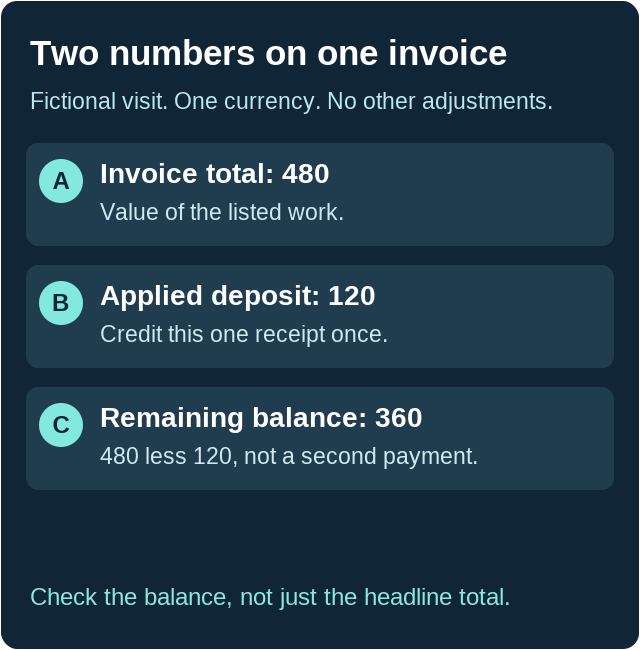
Now open the exact customer-facing document or preview. Is it the same invoice number and revision as the one in your office? Does the link open the current version while the old email still carries an earlier PDF? A staff view that says 360 does not prove that the file already in the customer's inbox says 360.
Follow one receipt through four records
| Record | Match this detail | What it does not establish |
|---|---|---|
| Payment receipt or merchant record | Same amount, currency, date, transaction reference and successful status. For cash or check, use your normal receipt and reconciliation controls. | A customer's screenshot or a pending authorization alone does not establish a completed, correctly allocated payment. |
| Accepted quote | Same customer, property, scope and quote number. A requested deposit is not the same as a collected deposit. | One customer can approve two jobs for the same amount. |
| Job or work order | Identify the job created for that accepted quote. Check for a duplicate or independently created job. | The job marked complete does not tell you which invoice has the credit. |
| Invoice and billing history | Match the invoice reference, amount already applied and current balance. Check for a separate account credit, an older invoice or a different installment. | A net account balance is not the amount due for every property or individual invoice on the account. |
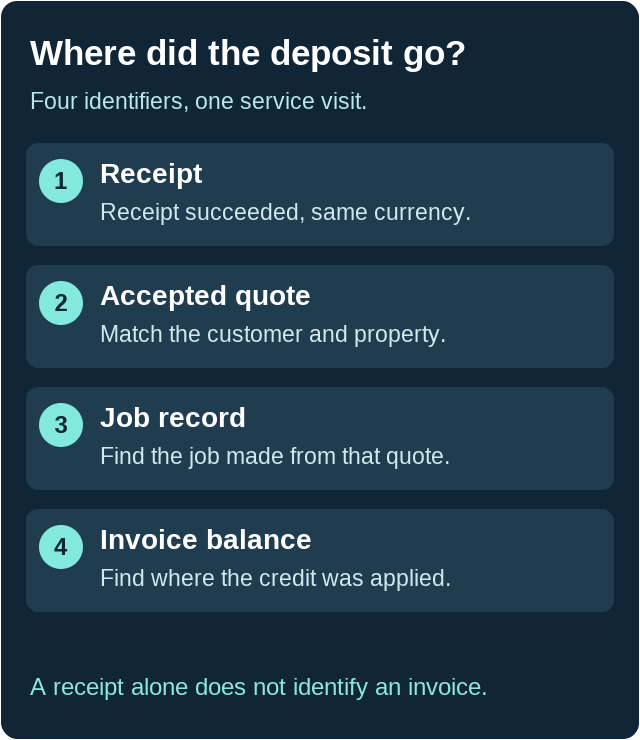
Example of the wrong match: A landlord has two properties. Both jobs have a 120 deposit. Receipt R-31 is tied to the quote for the flat on Elm Street, but the open invoice is for the shop on Oak Street. The customer name and amount both match. The property and quote do not. Leave the credit where it is until the agreement and intended job are verified. An unexplained balance is safer than “fixing” the wrong customer's statement.
What to do with what you find
| What the records show | Next action |
|---|---|
| The balance is correct; only the total looked wrong. | Point out the total, applied deposit and remaining amount on the same document. No new charge or adjustment is needed to explain it. |
| The office shows the right balance but the customer's PDF does not. | Check the current customer preview, issue one correct copy by your normal process and clearly identify the version it replaces. Do not promise that an old attachment updates itself. |
| The payment succeeded and appears as an unapplied credit for this client. | Verify the quote, property and invoice first. An authorized billing user can use the platform's existing-credit allocation workflow. Do not create a new receipt for money already recorded. |
| The processor shows success but you cannot locate the matching payment record. | Hold billing on this invoice. Give the platform's support team the transaction and document references through its official support channel. Do not repeat the charge, share card details or assume a delayed entry will repair itself. |
| The only record is pending, disputed, refunded or attached to another job. | Stop the standard reminder. Verify current status with the responsible processor or authorized billing lead. Do not treat an unsettled payment or a credit for another job as money available on this invoice. |
Where to look in Jobber
Jobber's guide to quote deposits describes a deposit following a linked quote into the job and then its invoice. If the invoice was created separately, inspect the link rather than assuming it exists. In the invoice deposit workflow, distinguish an existing unapplied deposit from a new deposit record. Choosing the latter to represent money already recorded would give you two records to explain.
On the customer profile, Jobber's billing history documentation explains how to see which document a payment was applied to. Look there if the customer's overall balance appears right but a particular invoice does not. For a job billed in stages, use the payment schedule documentation to identify what the current installment actually covers. Permissions, payment services and screens may differ. These are documented product behaviors, not a new ServiceTech transaction test.
Vendor demonstration: Add a Deposit to an Invoice | Invoicing, from the Jobber Help Center. The video illustrates allocation in Jobber; it was published in 2022 and is not evidence that your payment cleared or that today's interface is identical. Use the current help pages alongside it.
Add a Deposit to an Invoice
YouTube connects only after you choose to load this video.
What to tell the customer while you check
Thanks for flagging the deposit. I have paused the reminder for invoice [reference] while I match the payment to this job. Please do not pay that invoice again while I check. I will confirm the amount due or send a corrected copy by [time you can meet].
Only say you paused the reminder after you actually paused it. If someone else owns automatic collections, get them to verify the hold. Do not include bank or card information in ordinary messages.
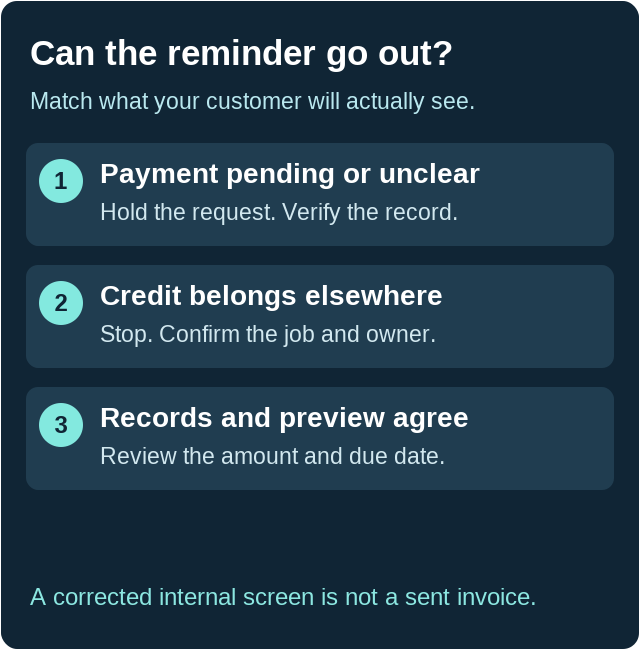
Close the loop: keep the receipt reference, job and invoice references, date of reconciliation, remaining balance and the version issued in your existing billing system. Reopen the customer preview before resuming reminders. If the amount is right but the invoice never arrived, switch to the invoice delivery diagnostic. Use the invoice payment reminder builder only for a verified outstanding amount. If the service system is correct but your books disagree, that is a separate accounting handoff.
This guide deals with document matching, not revenue recognition, tax, deposit refundability or collection rights. For a closed accounting period, a dispute, multi-currency allocation or uncertainty about an issued tax invoice, retain the original records and ask your bookkeeper or qualified local adviser before posting an adjustment.